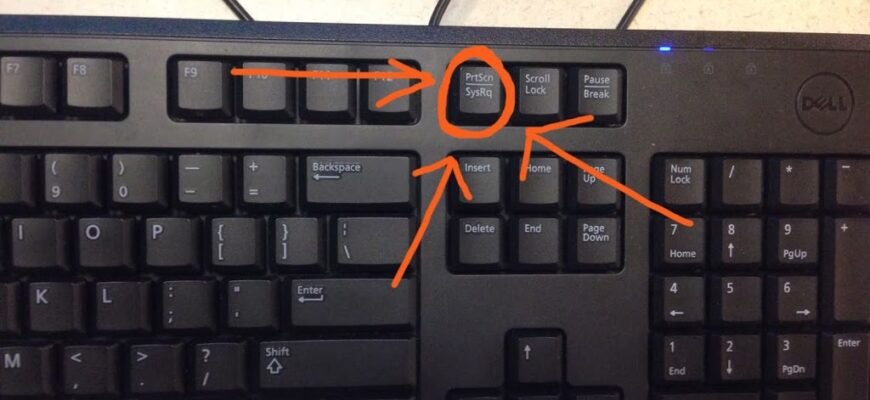
On Windows press PrtScn or Windows + Shift + S, and on a Mac press Shift + Command + 3 or 4.
Windows
- PrtScn: copies the whole screen to the clipboard.
- Windows + PrtScn: saves the whole screen to Pictures, Screenshots.
- Windows + Shift + S: Snipping Tool to select an area.
- Alt + PrtScn: active window.
Mac
- Shift + Command + 3: whole screen.
- Shift + Command + 4: selected area.
- Shift + Command + 5: toolbar with recording options.
Chromebook
Ctrl + Show windows key (or Shift + Ctrl + Show windows for partial).
Where saved
Windows: Pictures, Screenshots. Mac: Desktop.
Edit
Open in Paint, Preview or Snipping Tool.
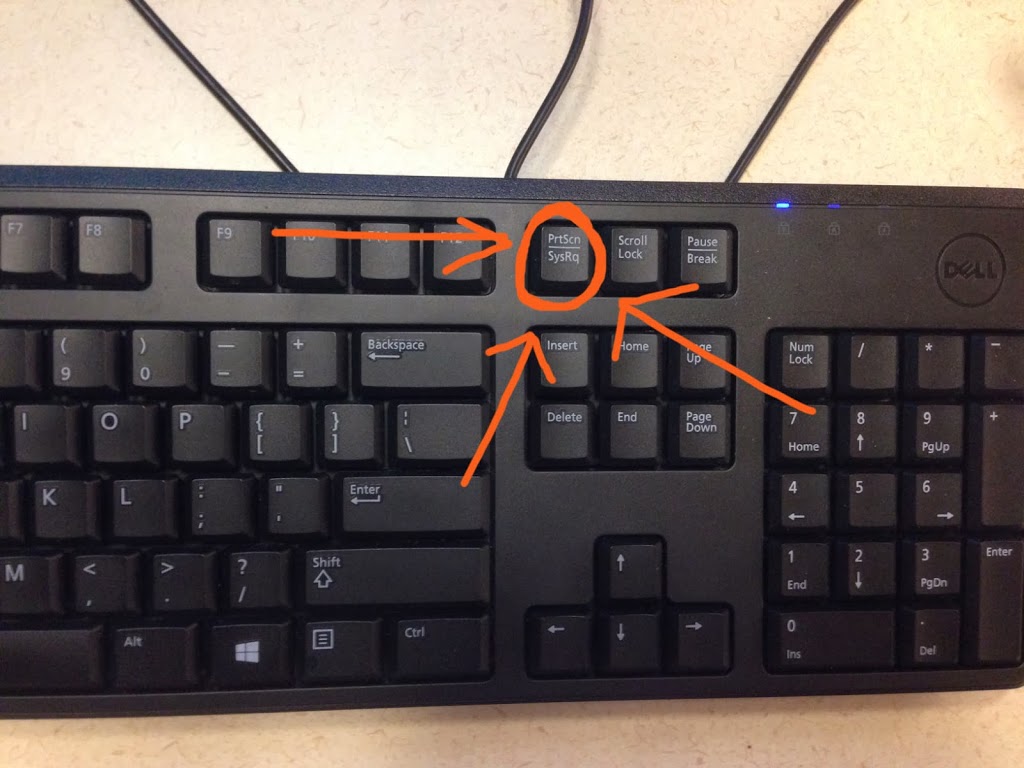
Capture a region on Windows
Press Windows key, Shift and S. Drag to select an area. The image is copied to the clipboard, and a notification opens Snipping Tool for saving. Press Print Screen to copy the full screen.
Capture a window
Press Alt and Print Screen to copy only the active window. On Windows 11, Snipping Tool also records video, and can extract text from an image.
Mac shortcuts
- Command, Shift and 3: full screen.
- Command, Shift and 4: selected area.
- Command, Shift and 4, then Space: a window.
- Command, Shift and 5: opens the screenshot toolbar with recording options.

Chromebook
Press Ctrl and Show windows key for full screen, Shift, Ctrl and Show windows for partial, or use the Screen capture tool in Quick Settings.
Phones
On iPhone, press the side button and volume up at once. On Android, press power and volume down.
Scrolling screenshots
Many Android phones and some iPhones offer full page screenshots for long pages. In Windows and Mac, a browser extension or built-in browser tool can capture a full page.
Format
Screenshots are usually saved as PNG, which keeps text sharp, though files can be larger than JPEG.
Windows and Mac shortcuts in detail
On Windows 10 and 11, pressing Windows key + Shift + S opens the Snipping Tool overlay to capture a rectangle, freeform, window or full screen, and the image is copied to the clipboard. The Print Screen key copies the whole screen, and Windows key + Print Screen saves a PNG to the Pictures, Screenshots folder. Alt + Print Screen captures the active window. On a Mac, Shift + Command + 3 captures the entire screen, Shift + Command + 4 captures a selected area, and Shift + Command + 5 opens the Screenshot toolbar with screen recording options. Mac screenshots save to the desktop as PNG by default, and holding Control with the shortcut copies to the clipboard.

Phones, tablets and scrolling pages
On iPhone with Face ID, press the side button and volume up at the same time, and on models with a Home button, press the side or top button and Home. On most Android phones, hold Power and Volume Down for a second or two. Chromebooks use Ctrl + Show Windows key to capture the screen, or Ctrl + Shift + Show Windows for a partial one. Chrome browsers and some Samsung phones have a scrolling or long screenshot option to capture a whole page. Screenshots are saved as PNG, which keeps text sharp, while JPG files are smaller but lose some detail. Remember that screenshots can include private information, so check before sharing.
Based on data from Microsoft Support and Apple Support